You can setup polls that your audience can vote on when sending in a tip. Getting started with polls is easy.
To create a new poll, click Create Poll.
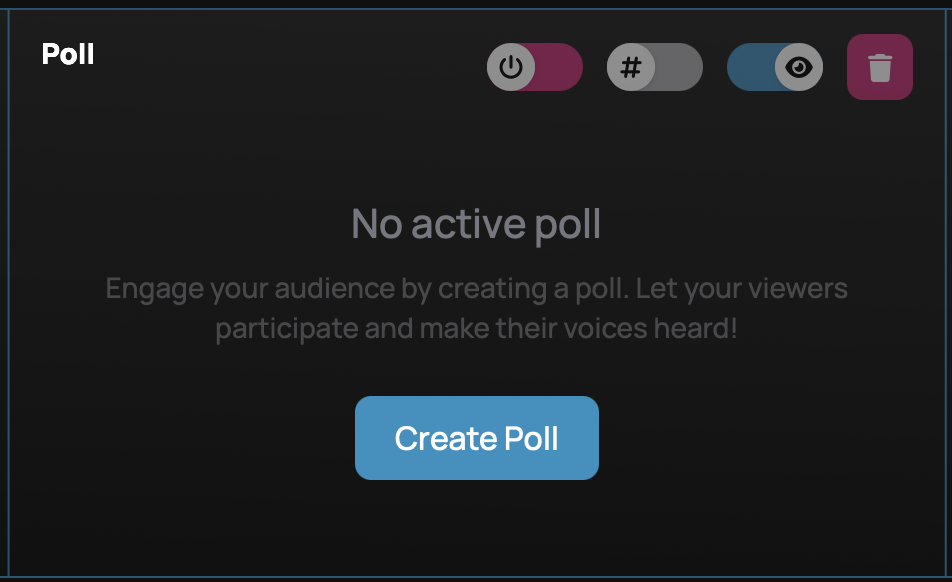
If you already have a poll, you must first deactivate the poll and delete it in order to create a new one. Switch the power button toggle (the left-most toggle) to the left red position, and then click the trash can button to clear the poll.
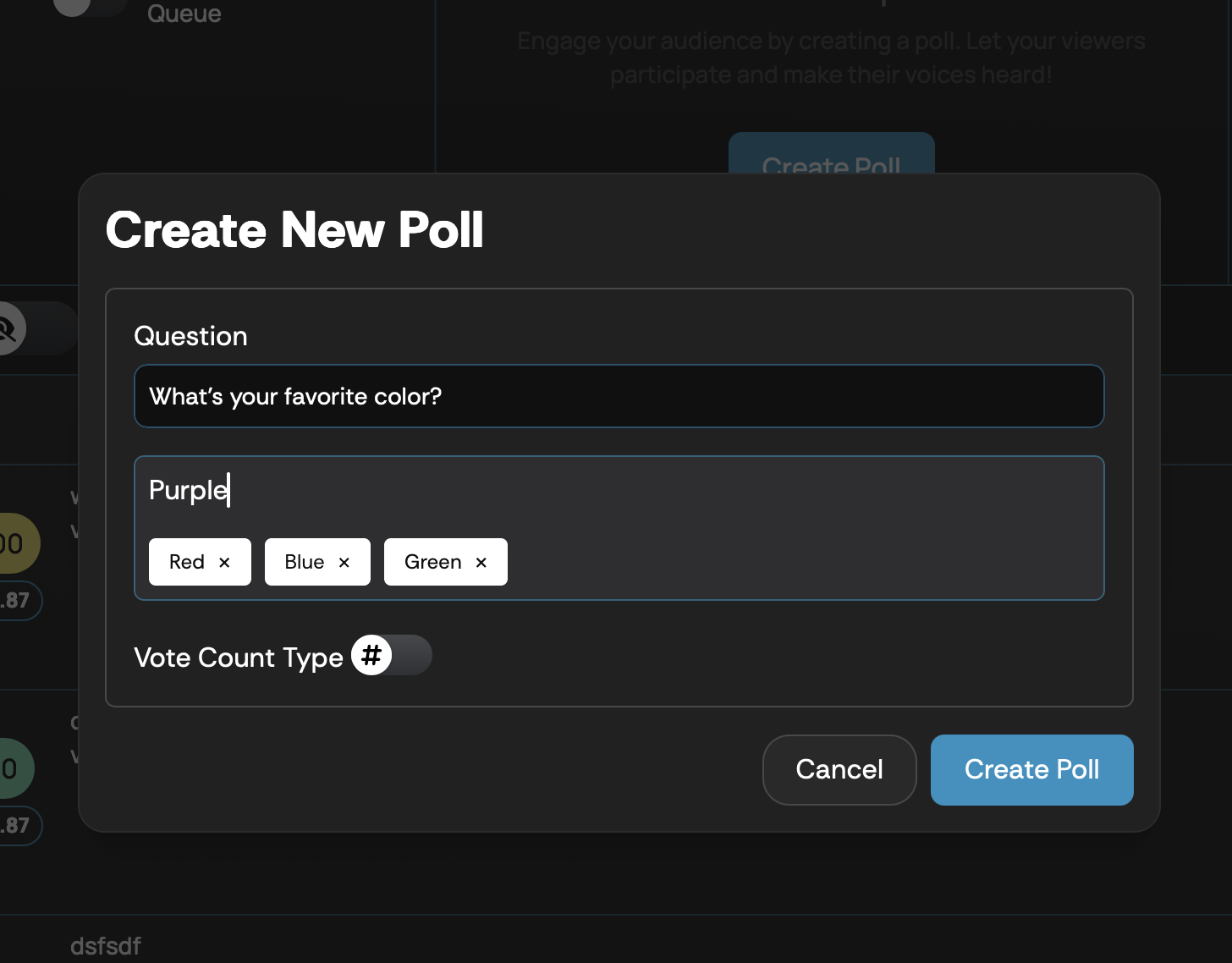
On the poll creation window, type your poll question, followed by the options you'd like to make available on the poll. After typing each option, press enter to add it to the poll. To remove an option you've already added, click the X next to the option. You can then select whether you'd like your poll to show results by the number of votes or by the amount of money donated. This allows you to weight votes differently based on your preference.
Example: A poll with one tip for $5 for option A and another tip for $10 for option B will show as 1:1 for the # option, or 1:2 for the dollars option.
When you're happy with your poll and options, click Create Poll. Your poll will be live immediately on all tip types for your audience.
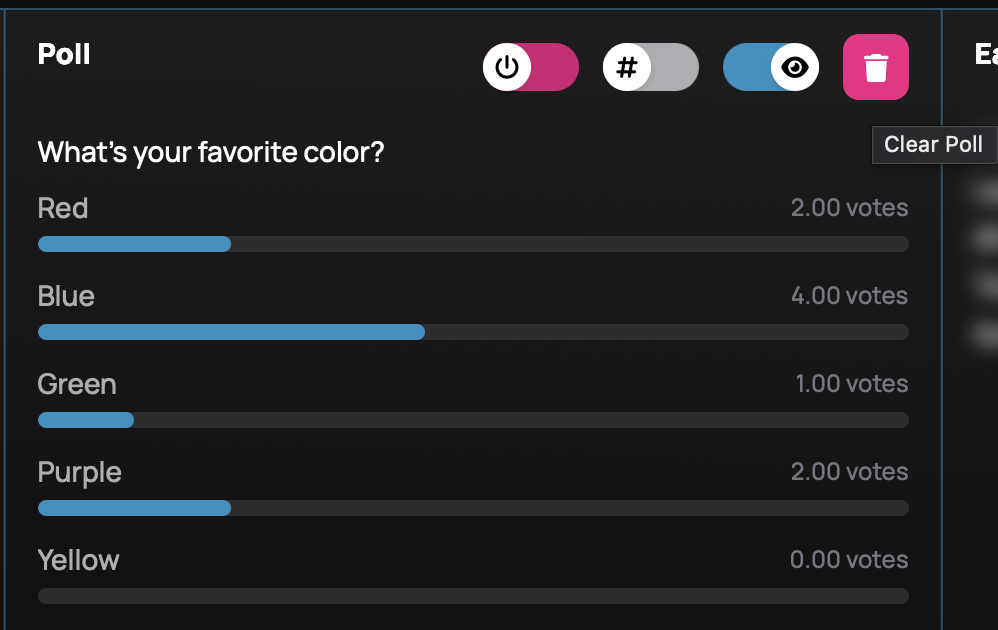
At any time you can adjust the toggles to turn the poll off or on, change the value counted for polls between total votes or dollars, and show/hide the poll results quickly on your overlay.
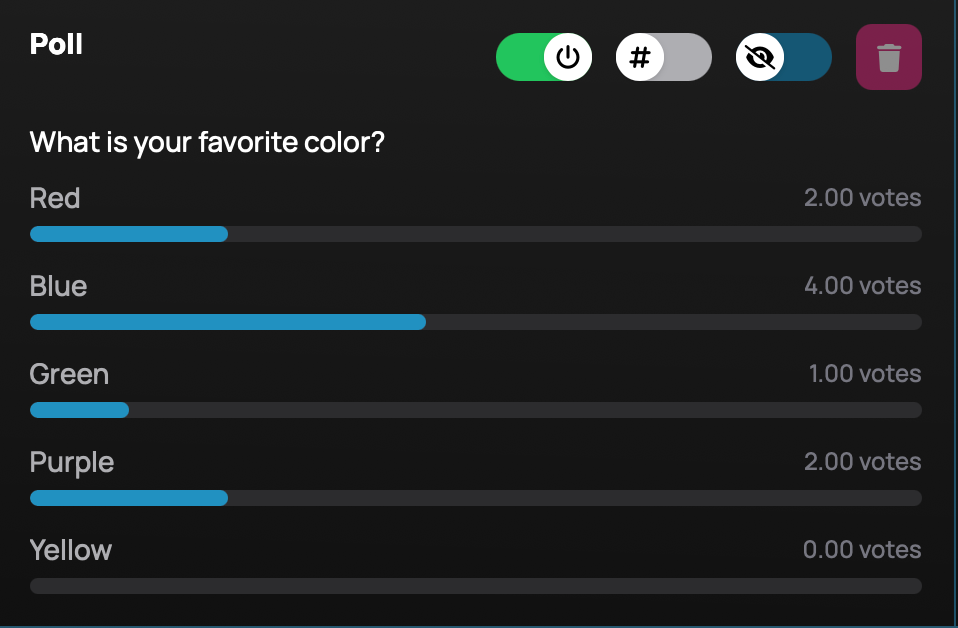
When you switch the eye toggle to on, the poll results will appear on your overlay. Tips will continue to show while the poll results are visible on the overly. Simply change the eye toggle back to off to hide the poll results on your overlay.
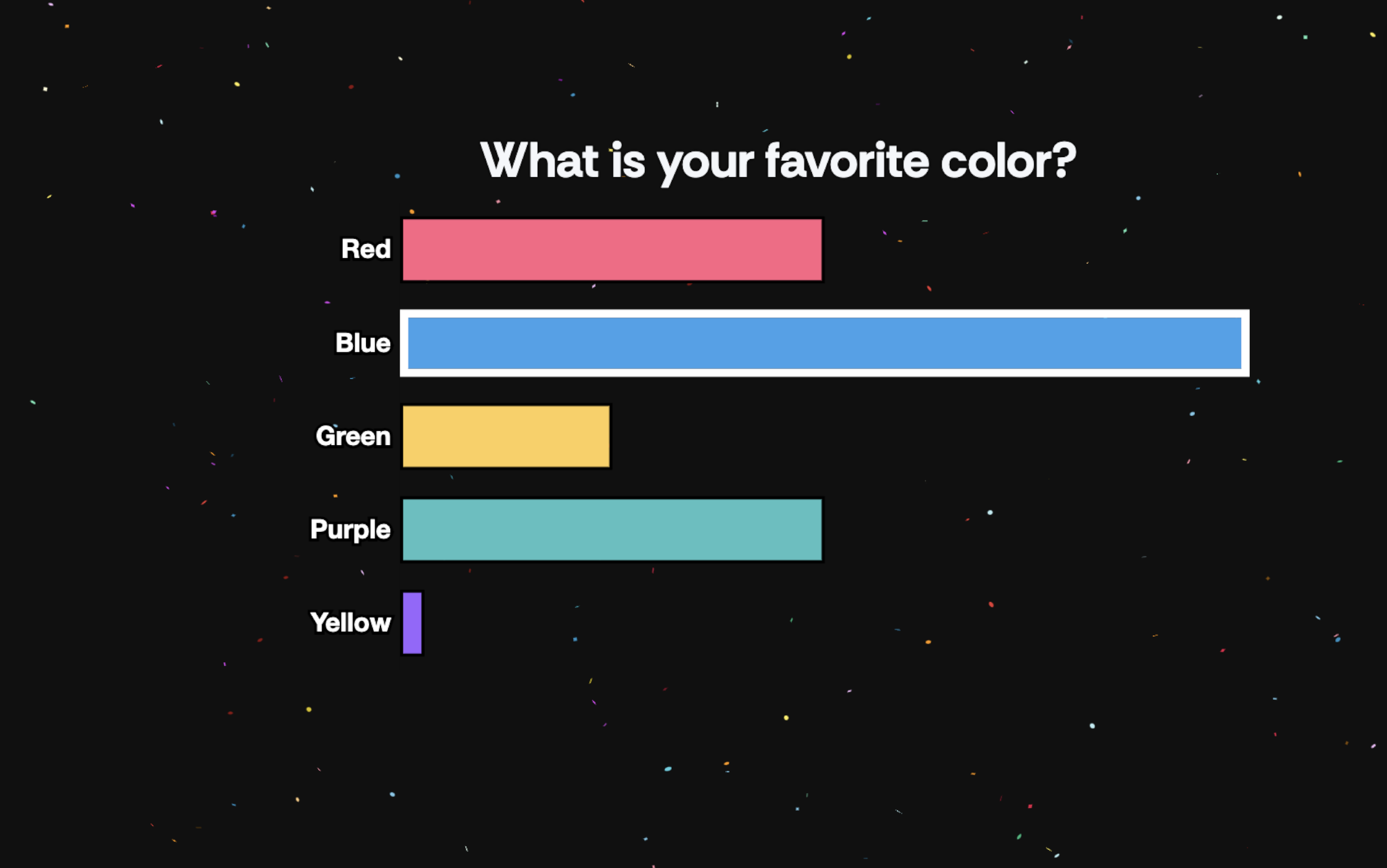
Note: Color bars for poll options are assigned automatically by Supertip and don't correspond to these sample poll options.
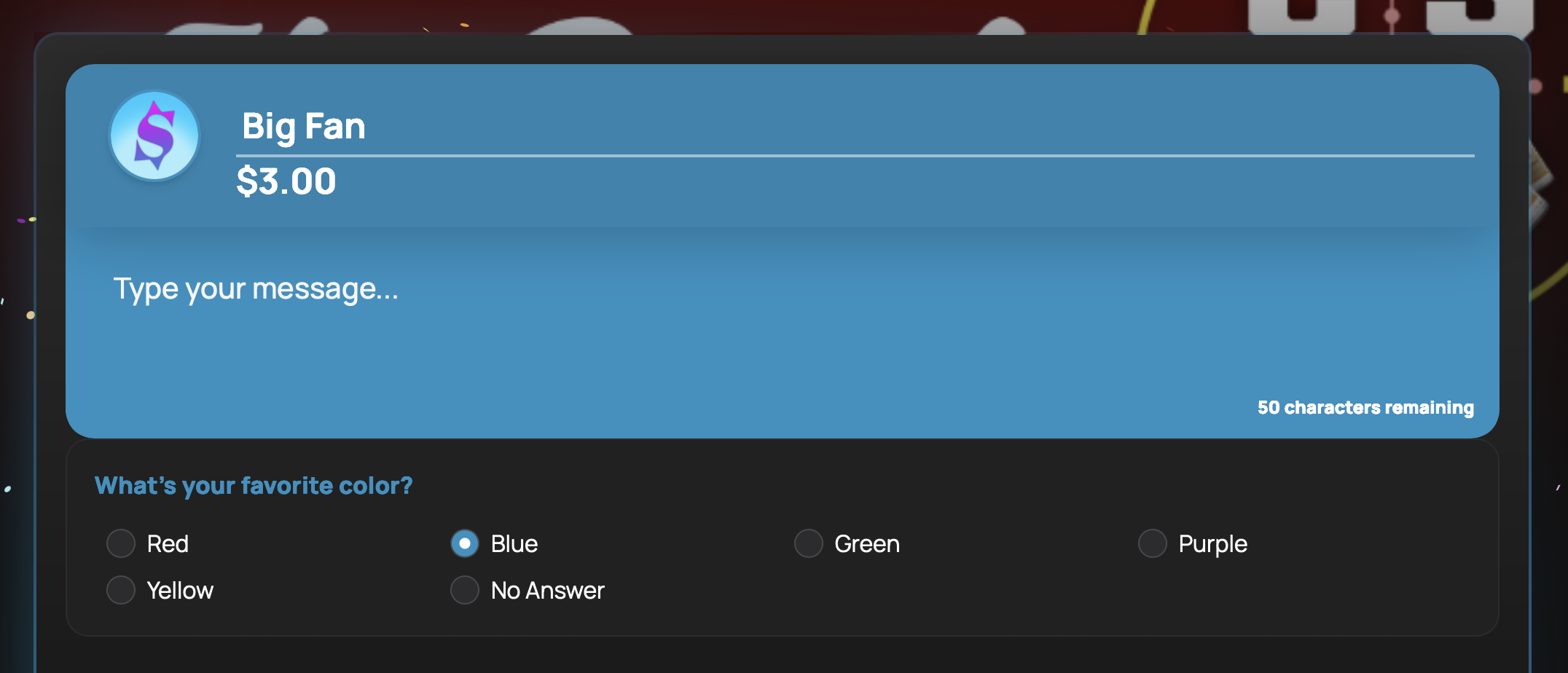
All tips you receive with poll votes will display poll choice on the tip on your panel as well as the overlay.

When you want to close a poll, simply switch the first toggle to the left position (the green will become red when the poll is off.)
Poll results will remain visible to you even when the poll is off until you create a new poll.
Was this article helpful?
That’s Great!
Thank you for your feedback
Sorry! We couldn't be helpful
Thank you for your feedback
Feedback sent
We appreciate your effort and will try to fix the article